Design & Theming
Customize the look and feel of your forms to match your brand. Rowform gives you full control over colors, fonts, and visual elements.
Accessing the Design Panel
Open your form in the Builder and click Design in the Build toolbar.
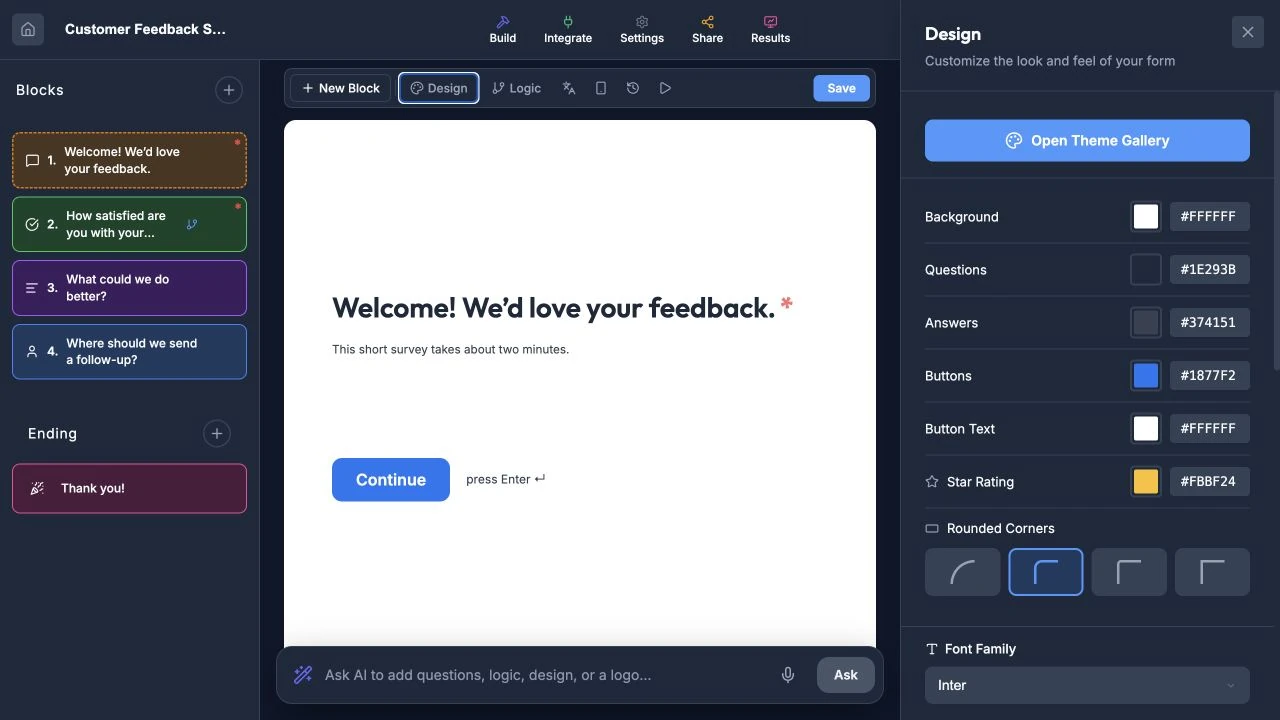
Design changes appear immediately in the live preview.
Theme Presets
Open Theme Gallery to choose from the built-in themes. Examples include:
| Theme | Description |
|---|---|
| Default | Clean white background with dark text. |
| Ocean | Deep blue tones with light text. |
| Forest | Green palette inspired by nature. |
| Sunset | Warm orange and amber tones. |
| Lavender | Soft purple and lilac colors. |
| Midnight | Dark background with light text. |
Click any preset to apply it instantly. You can further customize colors after applying a preset.
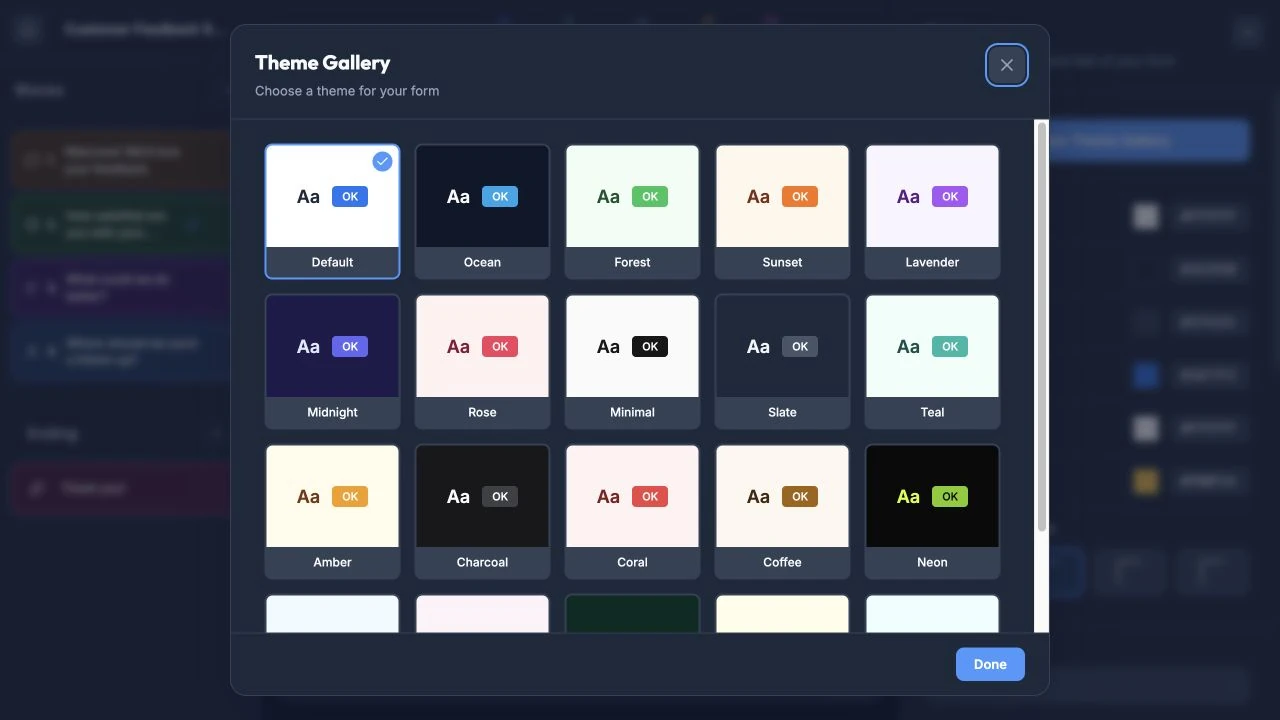
Start with a preset, then refine individual colors and type settings.
Color Customization
Fine-tune every color in your form:
| Setting | What It Controls |
|---|---|
| Background Color | The main background of your form. |
| Question Text Color | The color of question titles. |
| Answer Text Color | The color of respondent input text. |
| Button Color | The background color of navigation and submit buttons. |
| Button Text Color | The text color inside buttons. |
| Star Rating Color | The color of rating stars (applies to Rating questions). |
Use the color picker or enter a hex code directly.
Typography
Font Family
Choose from the default system font or upload your own custom font.
Font Size
Adjust the base font size (in pixels) for your form content.
Custom Font Upload
Upload a custom font in TTF, OTF, WOFF, or WOFF2 format to use your brand’s typography.
Note: Custom fonts are a Pro feature.
Images & Branding
Logo
Upload your company or brand logo. It appears at the top of your form.
Background Image
Set a background image that displays behind your form content.
Cover Image
Add a cover image that appears on your form’s intro or welcome screen.
Text Alignment
Set the default alignment for question text:
- Left — Standard left-aligned text.
- Center — Centered text, great for minimal forms.
- Right — Right-aligned text.
You can also override alignment on individual questions in the Build tab.
RTL Note: When your form’s text direction is set to RTL (see Form Settings), new questions default to right-aligned. Pasted RTL text (Arabic, Hebrew, etc.) also auto-detects and right-aligns regardless of the form’s language setting.
Removing Rowform Branding
By default, forms display a small “Powered by Rowform” watermark. On the Pro plan, you can remove this watermark for a fully white-labeled experience.
Tips
- Stick to 2-3 colors maximum for a clean, professional look.
- Ensure sufficient contrast between text and background colors for readability.
- Test your design on both desktop and mobile before publishing.
- Use your brand’s primary color for buttons to reinforce brand recognition.