Team Collaboration
Invite team members to your workspace so they can create, edit, and manage forms together.
Inviting Members
- Open the organization selector beside the Rowform logo and choose Members.
- In Organization Settings, open Members if it is not already selected.
- Click Invite Member.
- Enter the person’s email address.
- Select the workspaces they should access.
- Click Send Invitation.
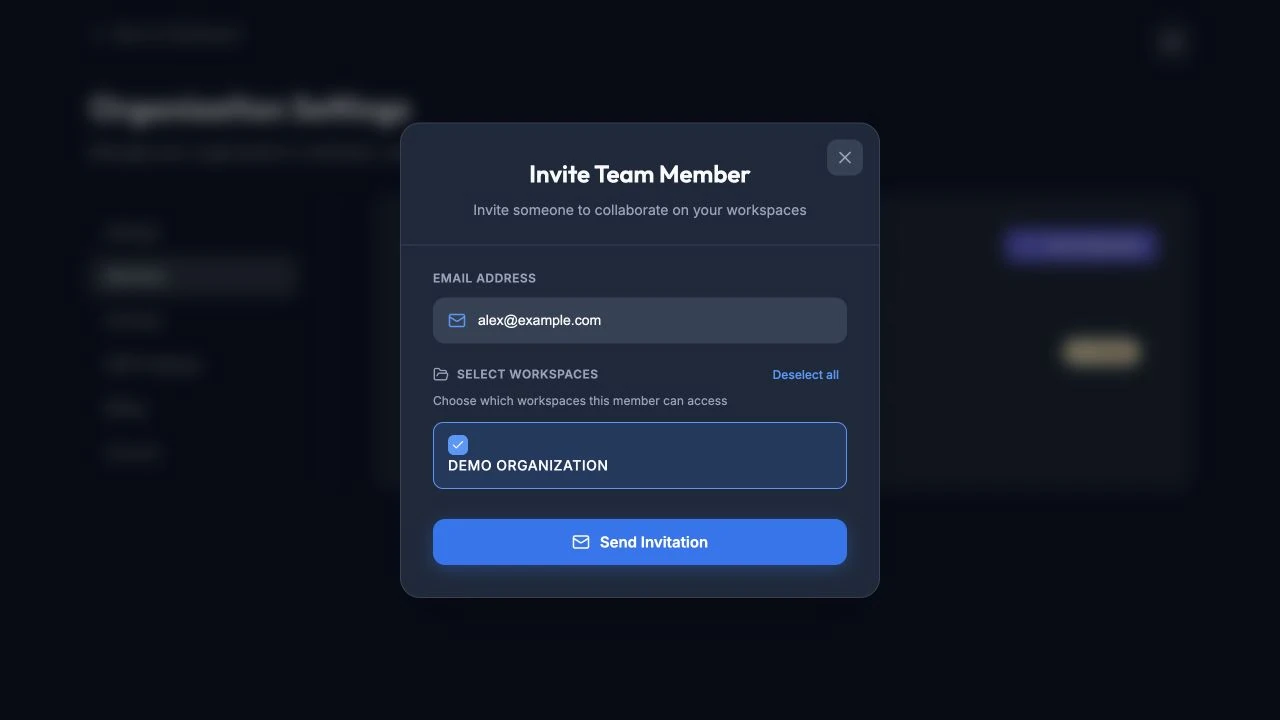
Invite teammates and choose which workspaces they can access.
The invited person will receive an email with a link to join your workspace.
Accepting an Invitation
When someone is invited:
- They receive an email with an invitation link.
- Clicking the link takes them to Rowform.
- If they already have an account, they’re added to the workspace.
- If they don’t have an account, they’ll create one and then be added.
Managing Members
Viewing Members
Go to Organization Settings > Members to see:
- All active members with their email addresses.
- Pending invitations that haven’t been accepted yet.
Removing Members
- Find the member in the members list.
- Click the Remove button next to their name.
- Confirm the removal.
Removed members lose access to the workspace and all its forms immediately.
Canceling Pending Invites
If someone hasn’t accepted their invitation yet:
- Find the pending invite in the members list.
- Click Cancel to revoke the invitation.
Feature Access
Team members inherit the workspace owner’s subscription tier. If the workspace owner has a Pro plan, all members in that workspace can use Pro features (custom branding, custom thank you buttons, AI translate, etc.) — even if their personal account is on the free plan.
Only the workspace owner needs a Pro subscription to unlock Pro features for the entire team.
Tips
- Invite team members before creating forms so everyone can collaborate from the start.
- Remove members promptly when they leave the team or project.
- Use workspaces to control which forms each team sees — members only access forms in their shared workspace.