Sharing & Publishing
Once your form is ready, publish it and share it with your audience. Rowform gives you multiple ways to distribute your form.
Publishing Your Form
- Open your form in the Builder.
- Click Publish in the header.
- Open Share in the top navigation to copy the link or choose another sharing method.
When published, your form gets a unique URL that anyone can access.
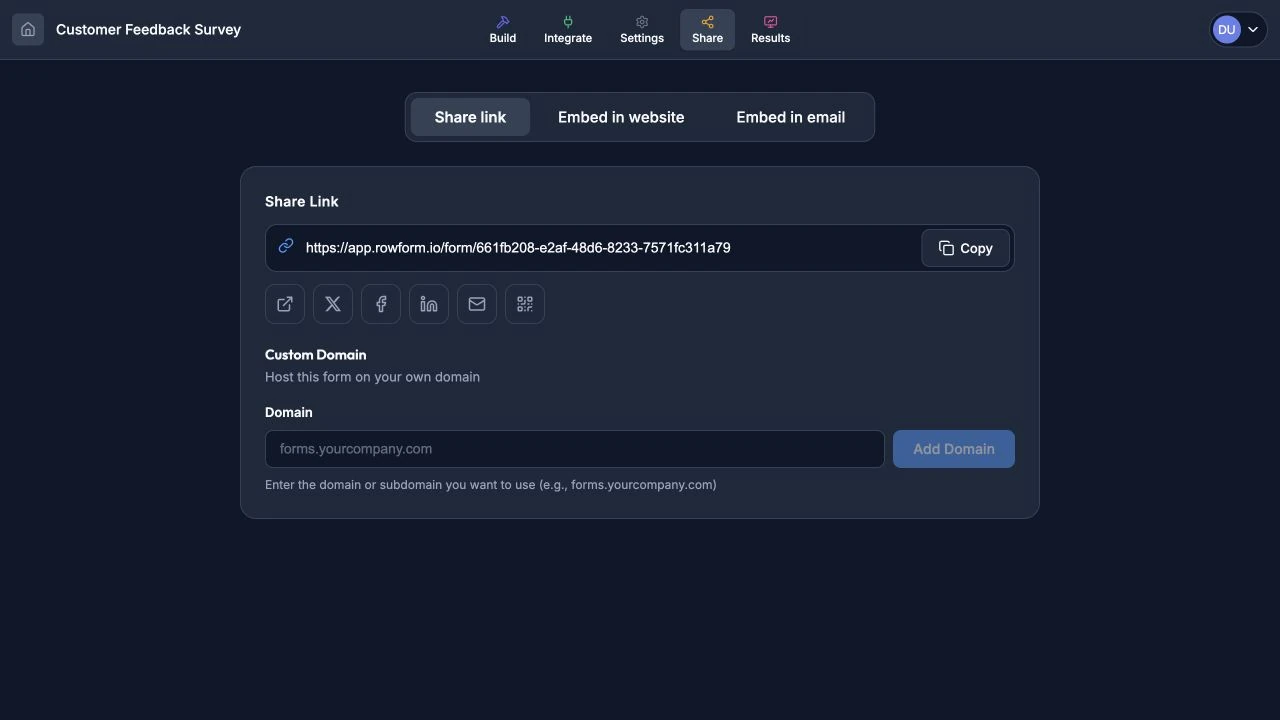
A published form gets a public link and sharing actions.
Note: You can unpublish a form at any time to stop accepting new responses. Existing responses are preserved.
Sharing Options
Direct Link
Copy your form’s unique URL and share it anywhere — in emails, messages, social media posts, or on your website.
Social Media Sharing
Share your form directly to:
- Twitter/X — Opens a pre-filled tweet with your form link.
- Facebook — Creates a shareable Facebook post.
- LinkedIn — Shares to your LinkedIn feed or network.
When shared, the link preview shows your form’s title, description, and image. You can customize these in Settings → Link Settings. Pro users can also upload a custom social preview image and favicon. See Form Settings for details.
Click the email share button to open your default email client with the form link pre-filled in the body.
QR Code
Click the QR Code button to open a modal with a scannable QR code for your form. This is useful for:
- Printed materials (flyers, posters, business cards).
- Event signage.
- Physical product packaging.
- In-store feedback collection.
Click Download in the QR modal to save the QR code as a PNG image.
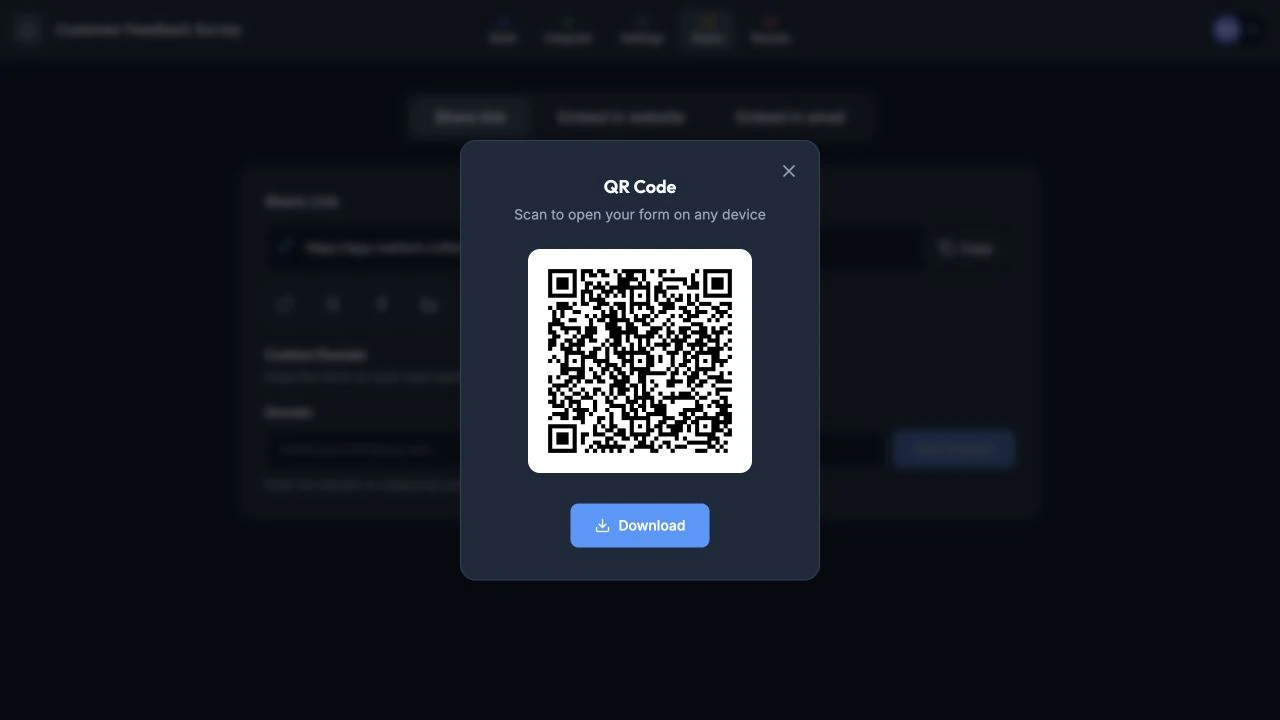
Download the QR code for printed or in-person distribution.
Copy to Clipboard
Click the copy button next to your form URL to copy it instantly.
Sharing Translated Forms
If your form has AI translations (Pro), you can share a link that opens in a specific language by appending ?lang= followed by the language code. For example:
https://app.rowform.io/form/abc123?lang=es— Opens the form in Spanish.https://app.rowform.io/form/abc123?lang=fr— Opens the form in French.
If no ?lang= parameter is provided, the form auto-detects the respondent’s browser language. If no matching translation exists, it falls back to the default language.
Custom Domain (Pro)
Host your form on your own domain (e.g., forms.yourcompany.com) instead of the default app.rowform.io URL. This gives your forms a professional, branded appearance and builds trust with respondents.
Setting Up a Custom Domain
- Open your form and go to the Share tab.
- In the Custom Domain section, enter your domain (e.g.,
forms.yourcompany.com). - Click Add Domain.
- You’ll see DNS configuration instructions. Add the following record in your DNS provider:
| Setting | Value |
|---|---|
| Type | CNAME |
| Name | Your subdomain (e.g., forms) |
| Value | cname.vercel-dns.com |
- After adding the DNS record, click Verify Domain. DNS changes can take up to 48 hours to propagate, but usually complete within minutes.
- Once verified, your form is live at your custom domain with a free SSL certificate.
Note: Custom domains require a subdomain (e.g.,
forms.yourcompany.com). Apex domains (e.g.,yourcompany.comwithout a subdomain) are not supported.
How It Works
- Each form can have one custom domain.
- When someone visits your custom domain, your form loads directly — no
/form/...path needed. - Social media previews (Open Graph tags) work on custom domains, using your form’s Link Settings.
- If you unpublish the form, visitors to the custom domain see a “Form Closed” message.
- Removing the custom domain in the Share tab disconnects it immediately.
Unpublishing a Form
Click Unpublish in the builder header. When unpublished:
- The form URL will no longer load for respondents.
- All existing responses are kept and accessible.
- You can republish at any time.
Bot Protection
All published forms are automatically protected by Cloudflare Turnstile. Bot protection runs invisibly and requires no setup — your form is shielded from spam as soon as it’s published.
Tips
- Always preview your form before publishing to catch any issues.
- Use QR codes for offline-to-online scenarios (events, print ads, receipts).
- Share on multiple channels to maximize response rates.
- Track which channels drive the most responses using your analytics dashboard.