Question Types
Rowform offers 23 question types to collect any kind of data. Each type is designed for a specific input scenario with built-in validation.
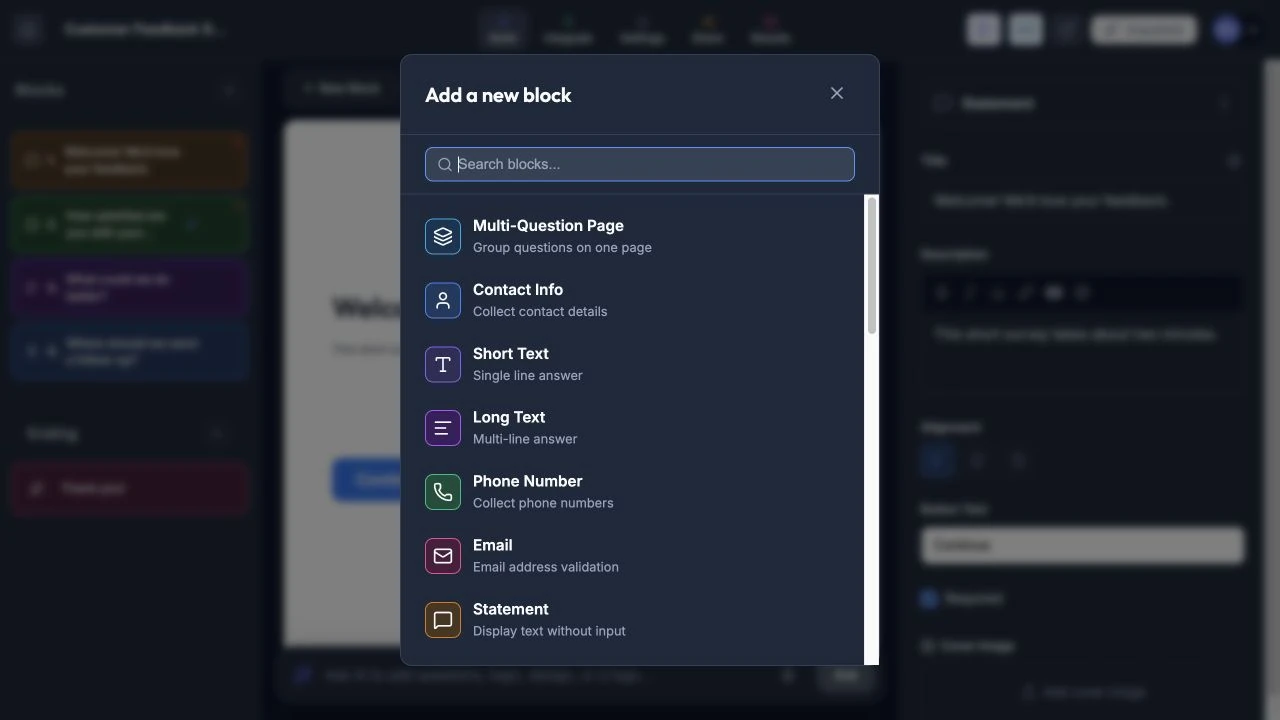
Open New Block to choose the input or content block you need.
Text Input Types
Short Text
A single-line text field for brief answers like names, titles, or short responses.
- Options: Placeholder text, required toggle.
Long Text
A multi-line text area for longer responses like feedback, comments, or descriptions.
- Options: Placeholder text, required toggle.
A text field with built-in email validation. Ensures respondents enter a valid email address.
- Options: Placeholder text, required toggle.
Phone
A phone number field with a country code selector dropdown.
- Options: Required toggle.
Number
A numeric-only input field. Accepts integers and decimals.
- Options: Placeholder text, required toggle.
Website
A URL input field for collecting website addresses.
- Options: Placeholder text, required toggle.
Date
A date picker that lets respondents select a date from a calendar.
- Options: Required toggle.
Choice & Selection Types
Multiple Choice
A single-select question with radio buttons. Respondents pick one option.
- Options: Add/remove/reorder choices, allow “Other” option, randomize order, horizontal or vertical layout, required toggle.
- Option Images: Each option can have an image or icon. Click the gear icon next to any option and select “Add image” to open the image picker. Sources include file upload, paste URL, Unsplash search, and Lucide icon search. When an option has an image, the layout switches to a visual card style with the image above the option text.
Checkbox
A multi-select question with checkboxes. Respondents can pick multiple options.
- Options: Add/remove/reorder choices, allow “Other” option, randomize order, horizontal or vertical layout, selection limits (exact count, minimum, maximum, or range), required toggle.
- Option Images: Same as Multiple Choice — each option can display an image or Lucide icon via the gear menu. Images appear above the option text in a card layout.
Dropdown
A select dropdown for picking one option from a list. Ideal when you have many choices and want to save space.
- Options: Add/remove/reorder choices, required toggle.
Complex Input Types
Contact Info
A multi-field block that collects contact details in a single question. Includes five configurable fields: First Name, Last Name, Email, Phone Number, and Company.
- Field Visibility — Show or hide individual fields using the eye icon in the Properties panel.
- Custom Labels — Override the default label for any field via the settings gear icon.
- Custom Placeholders — Set custom placeholder text for each field.
- Per-Field Required — Mark individual fields as required. When any field is marked required, the block is automatically set to required. Required fields display a label with a red asterisk on the form.
- Translation — All field labels and placeholders are included when using AI Translate.
Address
A multi-field block for collecting a full address with six fields: Street Address, Apartment/Suite, City, State/Province, ZIP/Postal Code, and Country.
- Options: Required toggle.
- Translation — All field placeholders are included when using AI Translate.
Scheduler
An appointment scheduling widget that lets respondents pick a date and time. Supports Calendly and Cal.com integration — paste your event URL in the block properties to embed a live scheduling widget directly in your form.
- Options: Required toggle, Scheduling URL (optional — Calendly or Cal.com).
- Without Scheduling URL: Shows a basic date and time picker.
- With Scheduling URL: Embeds the full scheduling widget from the detected provider. Respondent name and email are auto-filled from previous answers when available.
Matrix
A grid-style question with rows and columns. Respondents select one option per row using radio buttons.
- Options: Customize row labels, customize column labels, required toggle.
- Use case: Likert scales, comparative ratings, multi-criteria evaluations.
Rating & Feedback Types
Rating
A 1-to-5 star rating. Respondents click stars to rate.
- Options: Required toggle. Star color is set globally in the Design tab.
Opinion Scale
A 0-to-10 numeric scale. Respondents click a number to indicate their level of agreement or satisfaction.
- Options: Required toggle.
NPS (Net Promoter Score)
A specialized 0-to-10 scale for measuring customer loyalty. Labeled with “Not at all likely” and “Extremely likely” anchors.
- Options: Required toggle.
- Results: Responses are automatically categorized into Detractors (0–6), Passives (7–8), and Promoters (9–10), with a calculated NPS score and color-coded breakdown bar.
Ranking
A drag-to-order question. Respondents rank items by dragging them into their preferred order.
- Options: Add/remove/reorder items, required toggle.
Special Types
Signature
A digital signature pad. Respondents sign using their mouse or finger (on touch devices).
- Options: Required toggle.
- Note: Signatures are saved as images.
File Upload
Lets respondents upload files. You can restrict which file types are accepted.
- Categories: Images (JPG, PNG, GIF, WebP), Documents (PDF, DOCX, XLSX, PPTX), Videos (MP4, WebM, MOV), Audio (MP3, WAV, OGG), or All.
- Options: Category filter, required toggle.
- Limit: 10 MB per file.
Statement
A display-only block with no input field. Use it to provide instructions, context, or section breaks within your form.
- Options: Button text (to continue to the next question).
Legal
A checkbox for accepting terms, privacy policies, or other legal agreements. The respondent must check the box to proceed.
- Options: Required toggle.
Payment (Coming Soon)
A payment collection field powered by Stripe. This question type is currently in development.
Multi-Question Page
Groups multiple questions onto a single page/step. Instead of showing one question at a time, all child questions within a page block are displayed together and the respondent advances with a single “Next” button.
- Adding questions: Click the + Add question button inside the page group in the left sidebar. All standard question types can be added as children (except other pages and endings).
- Options: Title, description, button text, cover image.
- Validation: When the respondent clicks “Next”, all required child questions are validated at once. Errors are shown inline next to the specific child that needs attention.
- Logic: Page blocks support logic rules. Child question answers are available for logic conditions since each child stores its own answer.
- Progress bar: A page block counts as one step in the progress bar, regardless of how many child questions it contains.
- Use case: Contact forms, multi-field registration steps, grouped short questions that belong together contextually.
Thank You Page (Ending)
The final screen respondents see after submitting the form. Customize the message and add a link or call-to-action.
- Options: Custom title, custom message, button text, button link, redirect URL.
- Free plan: The button displays “Create your own Rowform” linking to rowform.io. Title, description, confetti, and social share are fully customizable.
- Pro plan: Customize the button text and link, or use a redirect URL to send respondents to any page after submission. When redirect is enabled, a countdown message (e.g. “Redirecting, please wait… (3s)”) is displayed on the end screen before navigating.
- Multiple endings: You can add more than one Thank You block to your form. Use the + button in the Endings section of the sidebar, or add an Ending from the block picker modal. Each ending can be duplicated or deleted (you must keep at least one). Combined with Logic & Branching, you can route respondents to different endings based on their answers or variable values.
- Note: Every form includes one Thank You page by default.
Common Properties
All question types share these properties:
| Property | Description |
|---|---|
| Required | When enabled, respondents must answer this question to proceed. |
| Description | Optional helper text displayed below the question title. Supports rich text formatting (bold, italic, underline, links), YouTube embeds, and answer piping. |
| Button Text | Customize the label on the “Next” button. |
| Alignment | Align the question text to the left, center, or right. Defaults to right for RTL forms. |