Logic & Branching
Add conditional logic to your forms to create dynamic, personalized experiences. Show or skip questions based on how respondents answer previous questions, calculate scores and prices, and route respondents to different endings.
Accessing the Logic Builder
Open your form in the Builder and click Logic in the Build toolbar.
How Logic Works
Logic rules let you control which question a respondent sees next based on their answer to the current question. Without logic, questions flow sequentially from top to bottom. With logic, you can skip questions, jump ahead, or send respondents to the end of the form.
You can also use logic to perform calculations — accumulating a running score, building up a price total, or tracking custom values as respondents progress through your form.
Creating a Logic Rule
- Click Logic in the Build toolbar.
- Select the question you want to add logic to.
- Click Add Logic.
- Configure the rule:
- Based on — Choose whether the rule is triggered by the respondent’s Answer, a Variable value, or Always (unconditionally).
- Condition — Choose the comparison (e.g., “equals”, “greater than”).
- Value — Specify the value to match.
- Then calculate — Optionally add calculation actions (e.g., add 5 to score).
- Jump to — Choose the destination question, an ending screen, or “Submit Form (End)”.
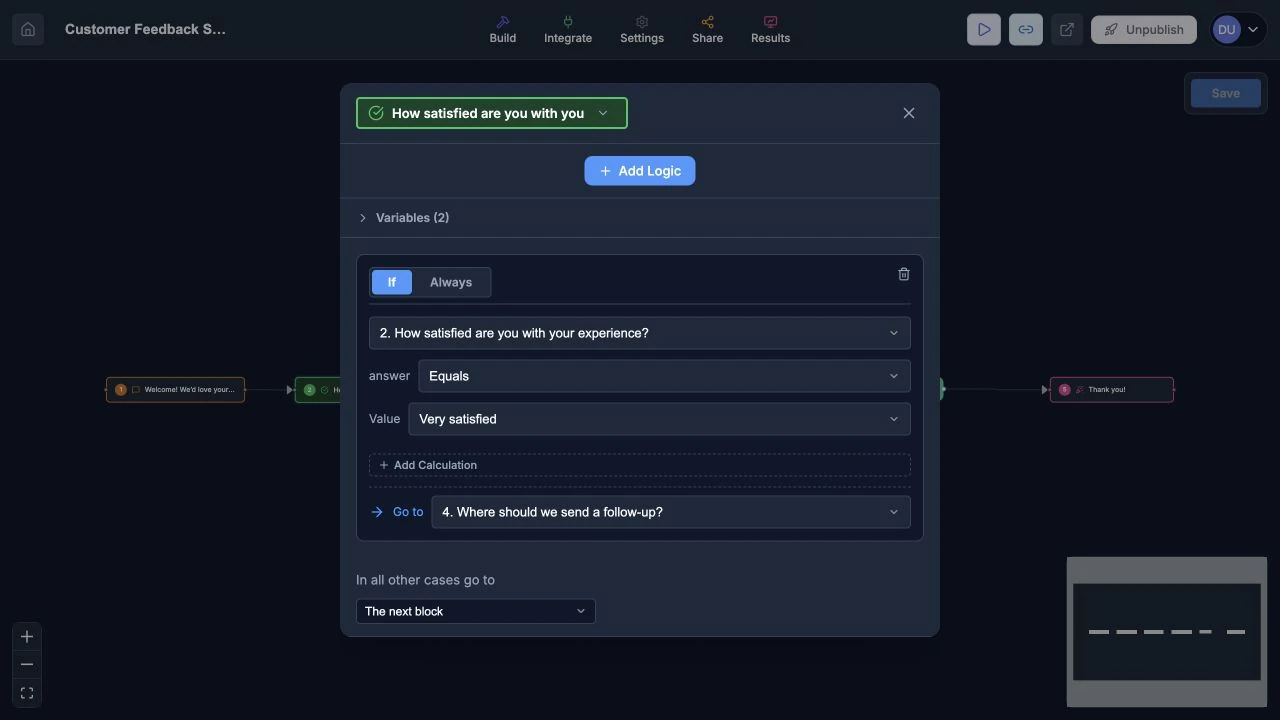
A rule combines a condition, optional calculations, and a destination.
Available Conditions
Answer-Based Conditions
For Text Questions
| Condition | Description |
|---|---|
| Equals | Answer exactly matches the specified value. |
| Not Equals | Answer does not match the specified value. |
| Contains | Answer includes the specified text. |
| Does Not Contain | Answer does not include the specified text. |
| Is Empty | No answer was provided. |
| Is Not Empty | An answer was provided. |
For Choice Questions (Multiple Choice, Checkbox, Dropdown)
| Condition | Description |
|---|---|
| Equals | The selected option matches the specified choice. |
| Not Equals | The selected option does not match. |
For choice-type questions, you’ll see a dropdown of the available options instead of a free-text input.
For Numeric Questions (Number, Rating, Opinion Scale, NPS)
| Condition | Description |
|---|---|
| Equals | The number matches exactly. |
| Not Equals | The number does not match. |
| Greater Than | The number is higher than the specified value. |
| Less Than | The number is lower than the specified value. |
Variable-Based Conditions
When you set a rule to be based on a Variable, you can compare any form variable against a number:
| Condition | Description |
|---|---|
| Equal to | Variable equals the specified number. |
| Not equal to | Variable does not equal the number. |
| Greater than | Variable is higher than the number. |
| Less than | Variable is lower than the number. |
| Greater or equal | Variable is equal to or higher than the number. |
| Less or equal | Variable is equal to or lower than the number. |
Always Condition
The Always condition triggers on every answer, regardless of what the respondent enters. This is useful for unconditional calculations — for example, “always add this answer’s value to the price variable.”
Destinations
When a rule’s condition is met, the respondent jumps to one of these destinations:
- Another question — Route to a specific question in the form.
- An ending screen — Jump to a specific Thank You page (useful for showing different results).
- Submit Form (End) — Jump directly to the default Thank You page.
Multiple Rules
You can add multiple rules to a single question. All rules are evaluated in order from top to bottom. Every matching rule’s calculation actions are executed, but only the first matching rule’s destination is used for the jump. If no rules match, the respondent proceeds to the next question in sequence.
Form Variables
Variables let you track numeric values as respondents progress through your form. Common uses include quiz scores, price calculators, and lead qualification scores.
Built-in Variables
Every form comes with two built-in variables:
| Variable | Default Value | Common Use |
|---|---|---|
| score | 0 | Quiz scoring, assessments, lead qualification |
| price | 0 | Order totals, price quotes, shopping carts |
Custom Variables
You can create additional custom variables for more complex scenarios — for example, tracking multiple personality scores in a personality quiz, or separate category totals.
To add a custom variable:
- In the Logic builder, expand the Variables section at the top of the right panel.
- Click Add Variable.
- Enter a name (lowercase, letters/numbers/underscores only) and a default value.
Managing Variables
The Variables section shows all your form’s variables with their names and default values. Built-in variables (score and price) cannot be deleted but their default values can be changed. Custom variables can be renamed, edited, or deleted.
Calculation Actions
Each logic rule can include one or more calculation actions that modify variable values when the rule’s condition is met.
Adding a Calculation
- In any logic rule card, click the + button next to “Then calculate”.
- Configure the action:
- Operator — Add, Subtract, Multiply, or Divide.
- Value — A constant number, or switch to a field reference to use a respondent’s numeric answer.
- Target variable — Which variable to modify (e.g., score, price).
Value Types
- Constant (
#) — A fixed number you specify (e.g., add 10 to score). - Field Reference (
f(x)) — Uses the respondent’s answer to a numeric question (Number, Rating, Opinion Scale, or NPS). Click the#/f(x)button to toggle between modes.
Calculation Examples
| Scenario | Operator | Value | Variable |
|---|---|---|---|
| Award 10 points for correct answer | Add | 10 | score |
| Add item price to cart | Add | 29.99 | price |
| Apply 20% discount | Multiply | 0.8 | price |
| Add respondent’s rating to total | Add | (field: Rating Q) | score |
Recall / Piping
You can insert dynamic values into question titles and descriptions — either the current value of a variable or a respondent’s answer to a previous question.
Variable Piping
Display the current value of any variable using the {{var:name}} syntax.
| Token | Displays |
|---|---|
{{var:score}} | Current value of the score variable |
{{var:price}} | Current value of the price variable |
{{var:your_custom_var}} | Current value of a custom variable |
Example — A Thank You page with the title:
You scored
{{var:score}}points! Your total is ${{var:price}}.
Displays as:
You scored 85 points! Your total is $49.99.
Tip: Integer values display without decimals. Decimal values display with 2 decimal places.
Answer Piping
Reference a respondent’s answer to a previous question using the {{answer:questionId}} syntax. This lets you personalize later questions based on what the respondent has already entered.
Using the @ shortcut (recommended):
- Place your cursor in a question Title or Description field.
- Type @ or click the @ button in the toolbar.
- Select a previous question from the dropdown.
- A styled badge appears showing the referenced question. At runtime, it is replaced with the respondent’s actual answer.
Manual syntax:
| Token | Displays |
|---|---|
{{answer:questionId}} | The respondent’s answer to that question |
If the respondent hasn’t answered the referenced question yet, the token resolves to an empty string.
Example — If Q1 asks “What is your name?” and Q2’s title is:
Nice to meet you,
{{answer:q1Id}}! What do you do for work?
A respondent who entered “Sarah” will see:
Nice to meet you, Sarah! What do you do for work?
Where You Can Use Piping
- Question titles / labels
- Question descriptions
- Thank You page titles and descriptions
Multiple Ending Screens
You can create multiple Thank You blocks in your form and use logic to route respondents to different endings based on their variable values.
Setting Up Multiple Endings
- Add two or more Thank You blocks to your form.
- Customize each ending with different titles, descriptions, and settings (redirect, confetti, etc.).
- On the last question (or a question near the end), add variable-based logic rules:
- Rule 1: If score > 80, jump to “Great job!” ending.
- Rule 2: If score > 50, jump to “Good effort!” ending.
- Default: Falls through to the first Thank You block.
Each ending screen has independent settings for redirects, confetti, social sharing, and button links.
Visual Flow Builder
The Logic builder includes a visual flowchart that shows how your questions connect. This makes it easy to see the full branching structure at a glance.
- Gray solid arrows show the default sequential flow.
- Blue dashed arrows show conditional logic jumps, labeled with the condition and any calculation actions.
- Calculator badges appear on questions that have calculation actions.
- Logic badges show how many rules a question has.
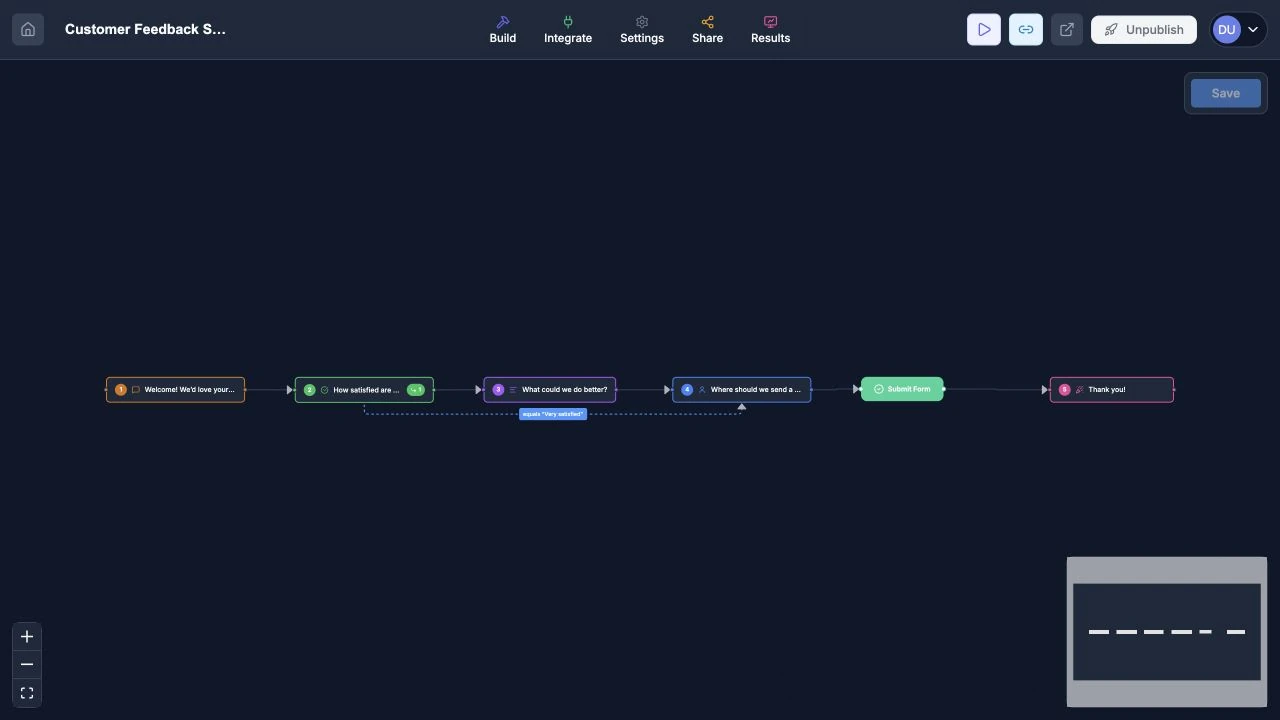
The flowchart shows the form’s branching structure at a glance.
Examples
Quiz with Score
- Q1: “What is the capital of France?” (Multiple Choice)
- Rule: If answer equals “Paris” → Always, add 10 to score.
- Rule: If answer equals “London” → Always, add 0 to score.
- Q2: “What year did WWII end?” (Multiple Choice)
- Rule: If answer equals “1945” → Always, add 10 to score.
- Thank You: “You scored
{{var:score}}/20!”
Price Calculator
- Q1: “Which plan?” (Multiple Choice: Basic / Pro / Enterprise)
- Rule: If answer equals “Basic”, add 9.99 to price.
- Rule: If answer equals “Pro”, add 29.99 to price.
- Rule: If answer equals “Enterprise”, add 99.99 to price.
- Q2: “How many seats?” (Number)
- Rule: Always, multiply price by (field: Q2 answer).
- Thank You: “Your estimated total: $
{{var:price}}”
Lead Qualification
- Q1: “Company size?” (Multiple Choice)
- Rule: If answer equals “1-10”, add 1 to score.
- Rule: If answer equals “11-50”, add 5 to score.
- Rule: If answer equals “50+”, add 10 to score.
- Q2: “Annual budget?” (Multiple Choice)
- Rule: If answer equals “$0-$1k”, add 1 to score.
- Rule: If answer equals “$1k-$10k”, add 5 to score.
- Rule: If answer equals “$10k+”, add 10 to score.
- Last question: Add variable-based rules:
- If score > 15 → Jump to “Book a Demo” ending.
- If score > 8 → Jump to “Download Guide” ending.
- Default → “Thanks for your interest” ending.
Skip a follow-up question
- Question: “Do you use our mobile app?” (Multiple Choice: Yes / No)
- Rule: If answer equals “No”, then go to question 5 (skipping mobile-specific questions 3 and 4).
End early for disqualified respondents
- Question: “Are you 18 or older?” (Multiple Choice: Yes / No)
- Rule: If answer equals “No”, then go to End of form.
Tips
- Keep branching simple. Complex logic with many nested branches can confuse respondents and make the form hard to maintain.
- Test all paths through your form before publishing.
- Use the visual flowchart to verify that all branches lead to a Thank You page.
- Use Statement questions to provide context when respondents land on a branch they might not expect.
- When using calculations, add rules in the order you want them evaluated — all matching rules execute their actions, but only the first match determines the jump destination.
- Use the “Always” condition for calculation-only rules that should run regardless of the answer.