Form Builder Overview
The Rowform Builder is where you create and edit your forms. It provides a visual, intuitive interface with live preview and drag-and-drop question management.
Builder Layout
The builder is divided into three main sections:
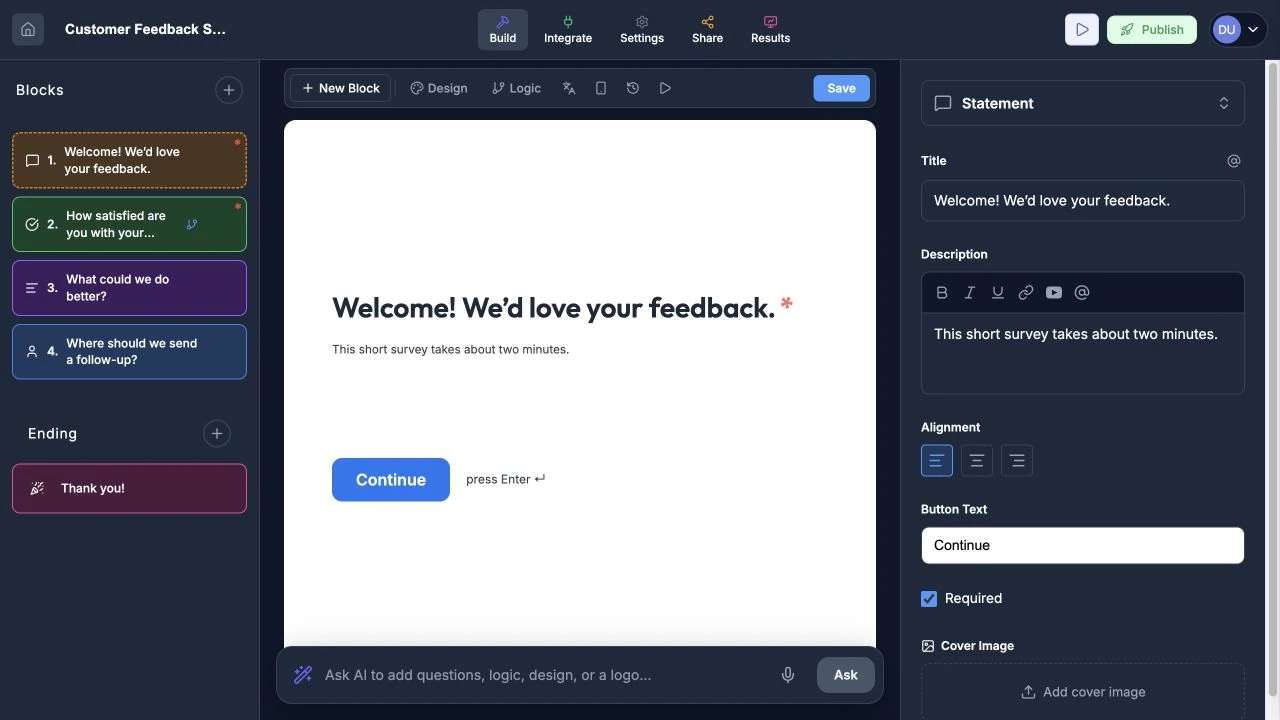
The builder keeps structure, preview, and properties visible together.
Left Sidebar — Block List
- Displays all blocks in your form in order.
- Drag and drop blocks to reorder them.
- Click any block to select it and edit it in the center canvas and Properties panel.
- Use New Block in the toolbar or the plus button beside Blocks to insert a block.
- Multi-Question Pages appear as collapsible groups. Click the expand/collapse toggle to show or hide child questions. Child questions are numbered with sub-labels (e.g. 2a, 2b). Use the + Add question button inside a page group to add children.
Center Canvas — Live Preview
- Shows a live preview of the currently selected question.
- Edit the question title directly by clicking on it.
- Toggle between Desktop and Mobile preview to see how your form looks on different devices.
- When a Multi-Question Page or any of its children is selected, the canvas displays all child questions together with a single “Next” button, matching how respondents will see the page.
Right Panel — Properties
Configure settings for the selected block:
- Required — Make the question mandatory.
- Description — Add helper text below the question. The description editor includes a rich text toolbar with Bold, Italic, Underline, Link, YouTube embed, and @ answer piping buttons.
- Placeholder — Set placeholder text for input fields.
- Button Text — Customize the “Next” button label.
- Alignment — Align question text left, center, or right. In RTL forms, new questions default to right-aligned.
- Some block types have specialized settings. For example, the Contact Info block lets you toggle visibility, set custom labels/placeholders, and mark individual fields as required.
The AI composer runs along the bottom of the canvas. Describe what you want in plain language and the assistant can add, remove, update, or reorder blocks. See AI Chat Builder for details.
Navigation and Toolbar
The top navigation has five main areas:
| Tab | Purpose |
|---|---|
| Build | Add and edit questions. |
| Integrate | Connect Google Sheets, webhooks, and more. |
| Settings | Configure form behavior, language, and notifications. |
| Share | Get the link, QR code, embed code, and custom-domain controls for a published form. |
| Results | View responses and analytics. |
The Build toolbar contains New Block, Design, Logic, Translate, the desktop/mobile preview toggle, Version History, Preview, and Save. Publishing is controlled by the Publish button in the header.
Adding Blocks
- Click New Block in the toolbar.
- A modal appears with all available block types.
- Click a block type to add it to your form.
- The new block appears directly after the currently selected block. If no block is selected, it is added at the end.
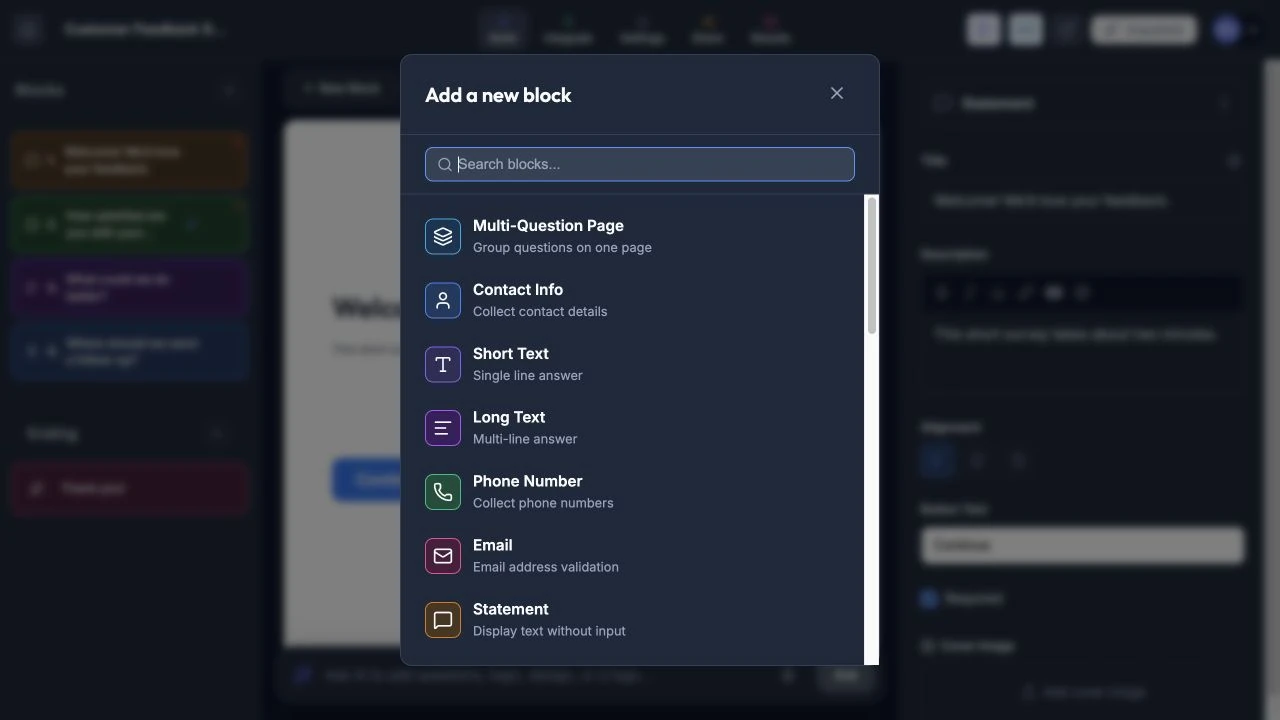
Select a block type to add it to the form.
Editing Questions
- Click any question in the left sidebar to select it.
- Edit the question title in the center canvas.
- Use the right panel to configure type-specific settings.
- Add a description for additional context or instructions.
Answer Piping (@-Mentions)
You can reference a respondent’s earlier answer inside a question title or description. This is useful for personalizing the form — for example, greeting someone by name or referencing a previous choice.
- Place your cursor in the Title field or Description editor in the Properties panel.
- Type @ to open the answer picker, or click the @ button in the toolbar.
- A dropdown appears listing all previous questions that can be referenced (excludes Statements and Endings).
- Select a question — a styled badge is inserted showing the referenced question’s label.
- When a respondent fills out the form, the badge is replaced with their actual answer.
Example: A Short Text question asks “What is your name?”. In the next question’s title, type Hi then press @ and select the name question. Respondents will see “Hi Sarah” (or whatever they entered).
Note: Answer piping tokens are stored as
{{answer:questionId}}in the form data. You can also type these tokens manually if you prefer.
Embedding YouTube Videos
You can embed a YouTube video directly inside a question description. The video appears inline below the question title on the published form.
- Open the Description editor in the Properties panel.
- Click the YouTube button in the toolbar (the play-button icon).
- Paste a YouTube URL (e.g.
https://www.youtube.com/watch?v=...orhttps://youtu.be/...). - Click Embed. A red badge appears in the editor showing the video ID.
- When respondents view the form, the badge is replaced with a playable YouTube player.
Note: YouTube embed tokens are stored as
{{youtube:videoId}}in the form data.
Reordering Questions
- Hover over a question in the left sidebar to reveal the drag handle.
- Click and drag to move the question to a new position.
- Release to drop it in place.
Deleting Questions
- Select the question you want to remove.
- Click the delete icon in the left sidebar or right panel.
- Confirm the deletion when prompted.
Mobile Preview
Use the device toggle in the canvas area to switch between desktop and mobile views. This helps you ensure your form looks great on all screen sizes.
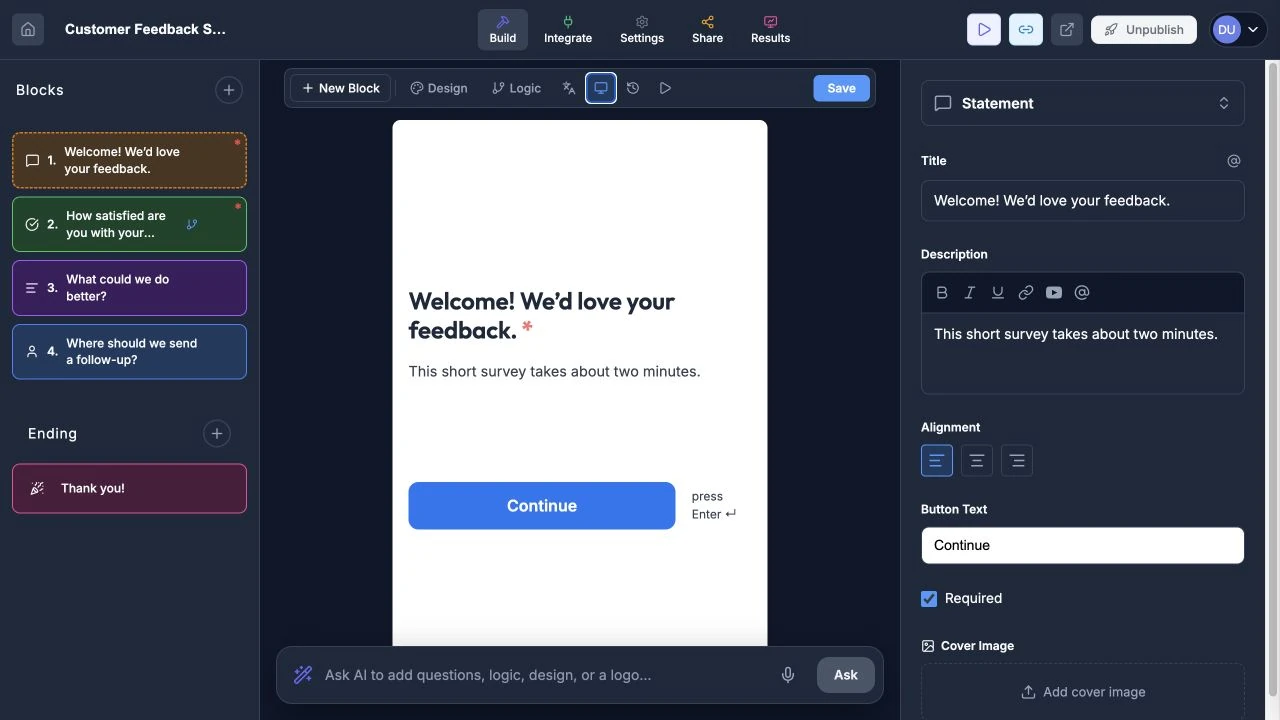
Use mobile preview before publishing.
Version History
Rowform automatically saves a version snapshot every time you save your form. To access version history:
- Click the clock icon in the floating toolbar above the canvas.
- A modal opens showing a timeline of all saved versions.
- Each entry shows when the version was saved and how many questions it contained.
- Click Restore on any older version to revert your form to that state.
- Confirm the restore — the page will reload with the restored version.
Version history is useful for recovering from accidental changes or comparing how your form has evolved over time.
Keyboard Shortcuts
- Escape — Close any open modal or panel.
Tips
- Write clear, concise question titles. Respondents should understand what’s being asked at a glance.
- Use descriptions sparingly — only when extra context is truly needed.
- Preview your form on mobile before publishing. Most respondents will fill out forms on their phones.
- Use the Thank You page to set expectations about what happens next.